GA4 GTM B2B Setup — Tracking ที่ถูกต้องสำหรับ B2B ไทย ปี 2026
คู่มือ GA4 GTM B2B Setup ครบจบ — ตั้ง GA4 property, GTM container, Conversion API และ event tracking สำหรับ B2B ที่วัดผล lead ไม่ใช่ purchase ปี 2026
GA4 GTM B2B Setup — Tracking ที่ถูกต้องสำหรับ B2B ไทย ปี 2026
ทีม Sales บอกว่าปิดดีล 12 รายเดือนนี้ แต่ GA4 รายงาน conversion แค่ 4 ครั้ง — ตัวเลขที่หายไปจำนวนมากนี้ไม่ใช่เรื่องแปลก เป็นปัญหาที่ B2B ไทยเจอทุกวันเมื่อ tracking setup ไม่ถูกต้อง
GA4 GTM B2B Setup ที่ถูกต้องต้องประกอบด้วย 3 ส่วน — GA4 property ที่ตั้งค่าสำหรับ lead-based measurement, GTM ที่จัดการ event อย่างเป็นระบบ และ Conversion API ที่ส่ง signal จาก server เพื่อชดเชย data ที่หายจาก iOS/ad blocker บทความนี้ให้ step-by-step ที่ใช้จริงสำหรับ B2B ไทย
Key Takeaways: GA4 GTM B2B Setup ต่างจาก e-commerce ตรงที่ต้องวัด Lead และ Pipeline ไม่ใช่ Purchase — ต้องตั้ง Key Events ให้ตรงกับ conversion จริง (form submit, phone click, meeting booked) และ import conversion เข้า Google Ads ด้วยเพื่อให้ Smart Bidding optimize ถูกทิศ การใช้ Conversion API ควบคู่ GTM ช่วยเพิ่ม signal accuracy อีก 20-40% สำหรับ iOS users
GA4 GTM B2B Setup คืออะไร — ทำไม B2B ต้องตั้งแตกต่าง
B2B Tracking ต่างจาก E-commerce ยังไง
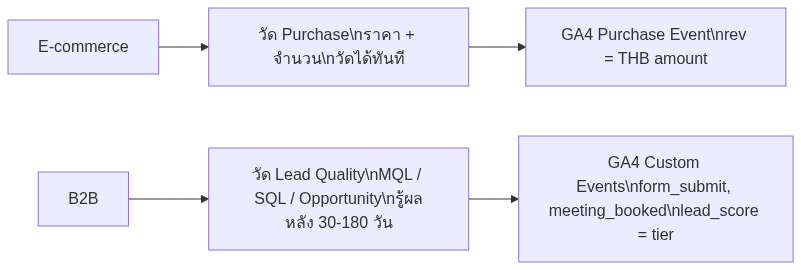
สิ่งที่ต้องวัดใน B2B:
| Conversion | GA4 Event | ความสำคัญ |
|---|---|---|
| กรอกฟอร์มติดต่อ | form_submit |
สูงสุด |
| โทรหา | phone_call_click |
สูง |
| นัด Demo / Meeting | meeting_booked |
สูงสุด |
| ดาวน์โหลด Whitepaper | content_download |
กลาง |
| เข้าชม /pricing | pricing_view |
กลาง |
Step 1: ตั้งค่า GA4 Property สำหรับ B2B
สร้าง GA4 Property ใหม่
- เปิด analytics.google.com → Admin → Create Property
- เลือก Web data stream → ใส่ domain
- เปิด Enhanced Measurement — แต่ปิด form interaction (จะตั้งเองใน GTM แทน)
ตั้ง Key Events (Conversions)
ใน GA4 Admin → Events → Mark ว่า event ไหนเป็น Key Event:
– form_submit ✅ Key Event
– meeting_booked ✅ Key Event
– phone_call_click ✅ Key Event
⚠️ อย่า mark ทุก event เป็น Key Event — GA4 จะ optimize ผิดทิศ
Custom Dimensions สำหรับ B2B
เพิ่ม Custom Dimension เพื่อให้ report มี context B2B:
| Dimension | Scope | Event Parameter |
|---|---|---|
| Lead Type | Event | lead_type |
| Company Size | Event | company_size |
| Industry | Event | user_industry |
| Content Category | Event | content_category |
Step 2: GTM Setup — จัดการ Events อย่างเป็นระบบ
Container Structure ที่แนะนำ

Tags ที่ต้องมีใน GTM B2B
1. GA4 Configuration Tag (fire on All Pages)
– Type: Google Tag
– Tag ID: G-XXXXXXXXXX
– สำคัญ: ตั้ง server_container_url ถ้าใช้ Server-side
2. GA4 Form Submit Event Tag
– Type: GA4 Event
– Event Name: form_submit
– Parameters: form_name, lead_type (จาก DataLayer Variables)
– Trigger: Custom Event “form_submit”
3. Google Ads Conversion Tag
– Link GA4 Key Events → Google Ads
– ใน Google Ads: Tools → Conversions → Import from GA4
Step 3: Conversion API (CAPI) — ชดเชย Signal ที่หาย
ทำไมต้องใช้ CAPI ใน B2B
B2B audience ใช้ iPhone (iOS) สูงกว่าค่าเฉลี่ย (โดยเฉพาะในกลุ่ม tech/finance) iOS 17 Link Tracking Protection ลบ fbclid ออก → Meta Pixel match ไม่ได้ → reported ROAS เบ้
CAPI ส่ง conversion event จาก server โดยตรง ไม่ผ่าน browser — iOS บล็อกไม่ได้
Setup CAPI สำหรับ Meta:
1. Meta Business Manager → Events Manager → เลือก Pixel → Add Event Source → Conversions API
2. เลือก GTM method (ถ้าใช้ GTM Server Container)
3. กำหนด event ที่จะส่ง: Lead, ViewContent, Contact
Setup Enhanced Conversions สำหรับ Google:
1. Google Ads → Goals → Conversions → เลือก Conversion → Enhanced Conversions
2. เปิด ใส่ email/phone ผ่าน dataLayer
Step 4: ตรวจสอบว่า Tracking ถูกต้อง
Checklist หลัง Setup
| Check | วิธีตรวจ | Pass criteria |
|---|---|---|
| GA4 ได้รับ events | GA4 DebugView | เห็น event real-time |
| GTM Tags fire ถูก | GTM Preview Mode | Tags fire ตาม trigger |
| Form Submit นับ | GA4 → Reports → Conversions | เห็น form_submit |
| Google Ads Conversion | Google Ads → Conversions | Status = Recording |
| Meta Event Match Quality | Meta Events Manager | Score ≥ 7.0 |
Signal Loss Calculator
เช็ค signal loss ด้วยสูตรง่ายๆ:
Signal Loss % = (CRM Leads - GA4 form_submit events) / CRM Leads × 100
ถ้า Signal Loss > 20% → ต้องเพิ่ม CAPI หรือ Server-side Tracking
ผิดพลาดที่พบบ่อยใน GA4 GTM B2B Setup
1. Mark ทุก event เป็น Key Event
GA4 Smart Bidding จะ optimize ไปหา event ที่เกิดบ่อยที่สุด ไม่ใช่ที่มีคุณค่าที่สุด
2. ใช้ Enhanced Measurement form tracking แทน GTM
Enhanced Measurement อ่าน form แบบ generic ไม่รู้ว่าฟอร์มไหนสำคัญ — ใช้ GTM custom event แทน
3. ไม่ import conversion เข้า Google Ads
GA4 Key Events ที่ไม่ได้ import → Google Ads ไม่ใช้ในการ optimize → Smart Bidding ทำงานบน click data เท่านั้น
4. ตั้ง attribution window สั้นเกินไป
B2B sales cycle 30-90 วัน แต่ default attribution window 30 วัน → conversion ที่เกิดหลัง 30 วันหาย
5. ไม่ filter internal traffic
Traffic ของทีม internal บิด data → ตั้ง IP exclusion ใน GA4 Admin
FAQ
GA4 กับ Universal Analytics ต่างกันยังไงสำหรับ B2B?
UA วัด session-based, GA4 วัด event-based — GA4 ยืดหยุ่นกว่าสำหรับ B2B เพราะสร้าง custom event ได้อิสระ ไม่ถูกจำกัดโดย goal structure แบบ UA
ต้องใช้ GTM กับ GA4 เสมอไหม?
ไม่จำเป็น ใส่ gtag.js โดยตรงก็ได้ แต่ GTM แนะนำสำหรับ B2B เพราะจัดการ multiple tags, debug ง่ายกว่า และเปลี่ยนแปลงโดยไม่ต้อง deploy code
Conversion API (CAPI) ตั้งได้โดยไม่มี developer ไหม?
ถ้าใช้ GTM Server Container สามารถ setup CAPI ผ่าน UI ได้โดยไม่ต้องเขียน code มาก แต่ต้องเข้าใจ GTM และ Meta Business Manager พอสมควร
ควรใช้ GA4 Property กี่ตัวสำหรับ B2B ที่มีหลาย product?
แนะนำ 1 Property ต่อ 1 website/app เว้นแต่มีการแยก reporting requirement ชัดเจน การมีหลาย property ทำให้ cross-product analysis ยากขึ้น
สรุป — GA4 GTM B2B Setup ที่ถูกต้อง
GA4 GTM B2B Setup ที่ดีไม่ใช่แค่ติด code — แต่คือการออกแบบ measurement strategy ที่ตอบ business question ของ B2B จริงๆ
3 Priority หลังอ่านบทความนี้:
1. Audit Key Events ปัจจุบัน — mark เฉพาะ conversion จริงๆ ไม่ใช่ทุก event
2. Setup CAPI สำหรับ Meta + Enhanced Conversions สำหรับ Google
3. ทำ Signal Loss calculation — ถ้า > 20% ต้อง prioritize server-side tracking
อ่านต่อ: Server-side Tracking Guide | GTM Advanced Patterns | Attribution Model B2B
Updated: 2026-06-02 | เขียนโดย Pratch K.